


 1489
1489
How to handle the RemoteApp security warning when launching Spruce
Type: How-to Category: Remote Access / RemoteApp / ECi Hosting Tags: RemoteApp, Spruce, security warning, verify publisher, cloud3, ecihosting, AlleghenyMillwork, drives, clipboard, plug and play, PnP, copy paste, local resources, gateway-c3 Audience: All AlleghenyMillwork users who launch the hosted Spruce RemoteApp from their local Windows computer
When you launch the Spruce RemoteApp, Windows shows a RemoteApp security warning asking you to verify the publisher and choose which local resources the remote computer is allowed to access. This article walks through that dialog and shows exactly which boxes to check so the application works correctly with your local clipboard, drives, and attached USB devices.
What you'll see
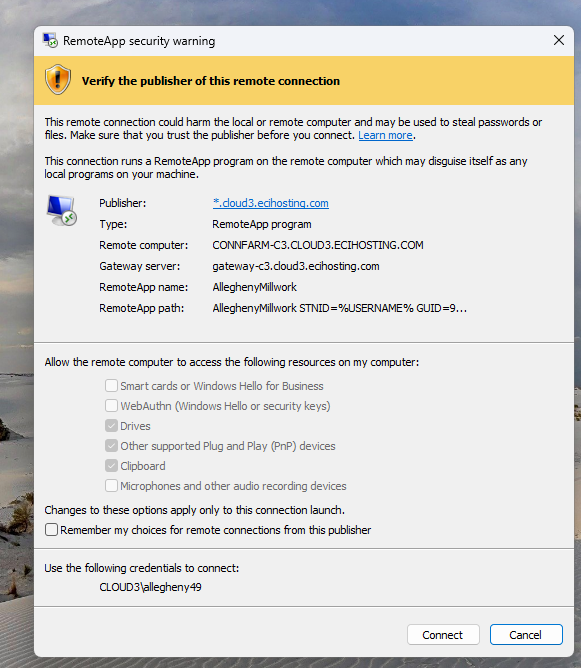
After clicking the Spruce shortcut, a dialog titled RemoteApp security warning — Verify the publisher of this remote connection appears with details similar to:
- Publisher:
*.cloud3.ecihosting.com - Type: RemoteApp program
- Remote computer:
CONNFARM-C3.CLOUD3.ECIHOSTING.COM - Gateway server:
gateway-c3.cloud3.ecihosting.com - RemoteApp name: AlleghenyMillwork
- Credentials:
CLOUD3\<your-username>(for example,CLOUD3\allegheny49)
If those publisher and gateway values match what's shown above, the dialog is legitimate and you can proceed.
Security note: Always verify the publisher reads
*.cloud3.ecihosting.comand the gateway isgateway-c3.cloud3.ecihosting.combefore clicking Connect. If you see a different publisher or an unverified warning, stop and contact IT — do not enter your credentials.
Steps
Verify the publisher
Confirm the Publisher line shows *.cloud3.ecihosting.com and the Gateway server is gateway-c3.cloud3.ecihosting.com. These identify the legitimate ECi-hosted Spruce environment.
Check the required local resources
In the Allow the remote computer to access the following resources on my computer section, make sure the following three boxes are checked:
- Drives — lets the Spruce application read and save files to your local computer's drives (for example, opening a PDF from your Desktop or saving an export to your Documents folder).
- Other supported Plug and Play (PnP) devices — lets the remote application use USB devices you've connected, such as scanners, label printers, or signature pads.
- Clipboard — lets you copy and paste text and files between your local computer and the Spruce session.
You can leave the following boxes unchecked unless your IT team specifically asks you to enable them:
- Smart cards or Windows Hello for Business
- WebAuthn (Windows Hello or security keys)
- Microphones and other audio recording devices
Remember your choices (recommended)
Check the box labeled Remember my choices for remote connections from this publisher. With this checked, you won't have to re-tick Drives, PnP devices, and Clipboard every time you open Spruce — Windows will trust the *.cloud3.ecihosting.com publisher going forward.
Confirm your credentials
Verify the Use the following credentials to connect line shows your assigned CLOUD3\ username (for example, CLOUD3\allegheny49). If the username is wrong or missing, cancel and reach out to IT before continuing.
Click Connect
Click Connect in the lower-right of the dialog. Spruce will launch as a RemoteApp window on your desktop.
Verify it worked
Once Spruce is open, run these quick checks to confirm the resources came through:
- Clipboard: Copy a line of text from a local app (like Notepad) and paste it into Spruce. Then copy something from Spruce and paste it into a local app.
- Drives: From within Spruce, use File > Open (or any file picker) and look for entries like
C on YOUR-COMPUTERor your local Desktop / Documents folders. They should be listed alongside the remote drives. - PnP devices: Plug in or use the USB device you need (scanner, signature pad, label printer) and confirm Spruce can see it.
Common Issues
- The dialog appears every single time I launch Spruce. You didn't check Remember my choices for remote connections from this publisher — open the app again and check that box before clicking Connect.
- Copy/paste between my computer and Spruce doesn't work. Re-launch the app and confirm Clipboard is checked in the security warning. If it's already checked, fully close Spruce and reconnect — clipboard redirection sometimes needs a fresh session.
- My local drives or Documents folder don't show up inside Spruce. Confirm Drives is checked at the security warning. If it is and they're still missing, reboot your computer and try again — drive redirection can fail if a previous RDP session didn't close cleanly.
- My USB scanner / signature pad / label printer isn't detected. Make sure Other supported Plug and Play (PnP) devices is checked, and that the device is plugged in before you launch the RemoteApp. Some devices won't be picked up if connected mid-session — disconnect the RemoteApp, plug the device in, and reconnect.
- I see a warning that the publisher could not be verified, or the publisher is not
*.cloud3.ecihosting.com. Stop. Do not click Connect and do not enter credentials. Contact IT — this could indicate a misconfigured shortcut or, in rare cases, a phishing attempt. - I accidentally clicked "Remember my choices" but want to change settings later. You can reset the saved choice by clearing the trusted publisher entry. This is best done by opening your application tray on your taskbar, right clicking the RemoteDesktop App, and "disconnecting from work resource". A restart of your computer should clear this as well. Next time you relaunch Spruce, you should be able to select "Drives, PnP Devices, and Clipboard" as described above.
Why these settings matter
The three checkboxes you enable control what the Spruce application can do with your local computer:
- Without Drives, you cannot open files from your local computer in Spruce or save reports back to your local folders.
- Without Clipboard, copy/paste between your local apps (email, browser, Excel) and Spruce will silently fail.
- Without Other supported PnP devices, attached USB hardware like scanners and signature pads will not be visible to Spruce.
Leaving the unrelated boxes (Smart cards, WebAuthn, microphones) unchecked keeps the connection minimal and reduces unnecessary exposure of local hardware to the remote session.
